


Which system do you have?
Check the label on your case, then tap your level.

Level 1
Music System

Level 2
Pro Sound

Level 3
Wireless Mic

Level 4
Wedding Pro
Safety first. If you are ever unsure of a step, stop. Do not proceed. Put safety first for you and anyone working with or near you. Call us at 509-468-7070.
SETUP STEPS
Level 1 · iParty Music System
2 Mackie SRM450 speakers on tripod stands, direct box, PC stereo cable, XLR cables, power strip and extension cords.
STEP 1
Set up the stands and speakers

Open each tripod stand on flat, level ground with the legs spread all the way. Set one speaker on top of each stand.
STEP 2
Plug in power (speakers stay off)
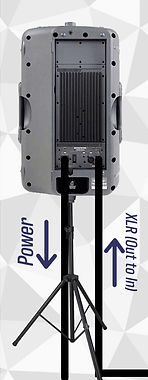
Plug each speaker's power cord into the power strip. Use the extension cords to reach an outlet. Leave the speakers switched off for now.
Tip: Each speaker's power cord travels with the speaker. Check the zipper pouch on the speaker bag.
STEP 3
Plug your music into the direct box


Plug the PC stereo cable (the aux cable) into your phone or laptop's headphone jack. Plug the other end into the direct box jack marked IN/OUT (Parallel Hi Z Input).
STEP 4
Direct box to Speaker 1


Run an XLR cable from the direct box OUTPUT (Balanced Lo Z) to the INPUT on Speaker 1. XLR always goes Out to In.
STEP 5
Connect Speaker 1 to Speaker 2

Run an XLR cable from the THRU (output) on Speaker 1 to the INPUT on Speaker 2.
STEP 6
Speaker settings
For music, press the CONTOUR button IN on each speaker. Keep each speaker's volume off for now. Speaker volumes are the first to come up when you turn it on.
STEP 7
Turn it on and set the volume
Turn your phone or laptop volume down low. Switch on the speakers. Turn up the volume on each speaker first. Then start your music and raise the volume slowly on your device.
Speaker volumes: first on, first off. When you shut down, the speaker volumes are the first to go off.
★ Pro-Tip
For music, press CONTOUR in on each speaker. Quality sound sounds good: not too much bass, not too much volume.
Quality sound is the result of good operation.
SETUP STEPS
Level 2 · iParty Pro Sound System
Everything in Level 1, plus an 8-channel mixer and a corded mic.
STEP 1
Start with all volumes off

Turn all volumes OFF: the mixer's MAIN (Master) volume, every channel volume, and both speakers. They stay off until setup is complete.
STEP 2
Set up the stands and speakers
Open each tripod stand on flat, level ground with the legs spread all the way. Set one speaker on top of each stand.
STEP 3
Plug in power (speakers stay off)
Plug each speaker's power cord into the power strip. Use the extension cords to reach an outlet. Leave the speakers switched off for now.
Tip: Each speaker's power cord travels with the speaker. Check the zipper pouch on the speaker bag.
STEP 4
Set up the mixer and plug in its power

Set the mixer between the speakers, as in the picture. Plug the mixer power cord into the mixer and into the power strip.
STEP 5
Mixer to the speakers (stereo)

Run an XLR cable from the mixer's L output to the INPUT on Speaker 1 (left), and from the mixer's R output to the INPUT on Speaker 2 (right), for stereo. XLR always goes Out to In.
STEP 6
Speaker settings
For music, press the CONTOUR button IN on each speaker. Keep each speaker's volume off for now. Speaker volumes are the first to come up when you turn it on.
STEP 7
Plug in the microphone

Plug microphones into Channels 1 and 2 of the mixer, one mic per channel.
Channel 1: corded mic
STEP 8
Plug in your music

Plug the aux cable into your phone or laptop's headphone jack and into the mixer's music input, LINE IN 7-8 (step 3 on the old guide, "Music Source Input").
STEP 9
Set the mixer before you power up


Important: Make sure each channel's MUTE button is OUT (not pressed in). If Mute is pressed in, there's no sound.
Make sure the decibel (dB) button near the top of each channel is OUT. If it's pressed in, the volume drops to almost nothing.
Turn the INPUT GAIN knob on Channels 1 and 2 up to the Unity (U) mark. If gain is off, no sound gets through.
Start the tone (frequency) knobs at straight up (12 o'clock), then adjust them to taste. Leave all volumes off for now.
STEP 10
Turn it on and set the volume
Once setup is complete, switch on the mixer and the speakers. Then bring the volumes up in this order:
Speaker volumes up first, on each speaker.
Then the mixer's MAIN (Master) volume.
Raise each microphone channel's volume (Channel 1 or 2, "Adjust Microphone Volume Only") to a good level.
Then raise the music channel's volume (channel 7-8, "Adjust Aux Volume Only").
Speaker volumes: first on, first off. When you shut down, turn the speaker volumes off first.
★ Pro-Tip
For music, press CONTOUR in on each speaker. Keep the EQ settings balanced. Quality sound sounds good: not too much bass, not too much volume.
Quality sound is the result of good operation.
SETUP STEPS
Level 3 · iParty Wireless Mic System
Everything in Level 2, plus a wireless handheld mic (AA batteries included).
STEP 1
Start with all volumes off
Turn all volumes OFF: the mixer's MAIN (Master) volume, every channel volume, and both speakers. They stay off until setup is complete.
STEP 2
Set up the stands and speakers
Open each tripod stand on flat, level ground with the legs spread all the way. Set one speaker on top of each stand.
STEP 3
Plug in power (speakers stay off)
Plug each speaker's power cord into the power strip. Use the extension cords to reach an outlet. Leave the speakers switched off for now.
Tip: Each speaker's power cord travels with the speaker. Check the zipper pouch on the speaker bag.
STEP 4
Set up the mixer and plug in its power
Set the mixer between the speakers, as in the picture. Plug the mixer power cord into the mixer and into the power strip.
STEP 5
Mixer to the speakers (stereo)
Run an XLR cable from the mixer's L output to the INPUT on Speaker 1 (left), and from the mixer's R output to the INPUT on Speaker 2 (right), for stereo. XLR always goes Out to In.
STEP 6
Speaker settings
For music, press the CONTOUR button IN on each speaker. Keep each speaker's volume off for now. Speaker volumes are the first to come up when you turn it on.
STEP 7
Plug in the microphones


Plug microphones into Channels 1 and 2 of the mixer, one mic per channel.
Channel 1: wireless handheld mic (plug in its receiver)
Channel 2: corded mic
Put the AA batteries (included) in the handheld mic.
STEP 8
Plug in your music
Plug the aux cable into your phone or laptop's headphone jack and into the mixer's music input, LINE IN 7-8 (step 3 on the old guide, "Music Source Input").
STEP 9
Set the mixer before you power up
Important: Make sure each channel's MUTE button is OUT (not pressed in). If Mute is pressed in, there's no sound.
Make sure the decibel (dB) button near the top of each channel is OUT. If it's pressed in, the volume drops to almost nothing.
Turn the INPUT GAIN knob on Channels 1 and 2 up to the Unity (U) mark. If gain is off, no sound gets through.
Start the tone (frequency) knobs at straight up (12 o'clock), then adjust them to taste. Leave all volumes off for now.
STEP 10
Turn it on and set the volume
Once setup is complete, switch on the mixer and the speakers. Then bring the volumes up in this order:
Speaker volumes up first, on each speaker.
Then the mixer's MAIN (Master) volume.
Raise each microphone channel's volume (Channel 1 or 2, "Adjust Microphone Volume Only") to a good level.
Then raise the music channel's volume (channel 7-8, "Adjust Aux Volume Only").
Speaker volumes: first on, first off. When you shut down, turn the speaker volumes off first.
★ Pro-Tip
For music, press CONTOUR in on each speaker. Keep the EQ settings balanced. Quality sound sounds good: not too much bass, not too much volume.
Quality sound is the result of good operation.
SETUP STEPS
Level 4 · iParty Wedding Pro System
Everything in Level 3, plus a wireless lapel mic.
STEP 1
Start with all volumes off
Turn all volumes OFF: the mixer's MAIN (Master) volume, every channel volume, and both speakers. They stay off until setup is complete.
STEP 2
Set up the stands and speakers
Open each tripod stand on flat, level ground with the legs spread all the way. Set one speaker on top of each stand.
STEP 3
Plug in power (speakers stay off)
Plug each speaker's power cord into the power strip. Use the extension cords to reach an outlet. Leave the speakers switched off for now.
Tip: Each speaker's power cord travels with the speaker. Check the zipper pouch on the speaker bag.
STEP 4
Set up the mixer and plug in its power
Set the mixer between the speakers, as in the picture. Plug the mixer power cord into the mixer and into the power strip.
STEP 5
Mixer to the speakers (stereo)
Run an XLR cable from the mixer's L output to the INPUT on Speaker 1 (left), and from the mixer's R output to the INPUT on Speaker 2 (right), for stereo. XLR always goes Out to In.
STEP 6
Speaker settings
For music, press the CONTOUR button IN on each speaker. Keep each speaker's volume off for now. Speaker volumes are the first to come up when you turn it on.
STEP 7
Plug in the microphones

Plug microphones into Channels 1 and 2 of the mixer, one mic per channel.
Channel 1: wireless handheld mic (plug in its receiver)
Channel 2: wireless lapel mic (plug in its receiver)
Put the AA batteries (included) in the handheld mic.
The corded mic is your backup. If a wireless mic acts up, plug the corded mic into that channel instead.
STEP 8
Plug in your music
Plug the aux cable into your phone or laptop's headphone jack and into the mixer's music input, LINE IN 7-8 (step 3 on the old guide, "Music Source Input").
STEP 9
Set the mixer before you power up
Important: Make sure each channel's MUTE button is OUT (not pressed in). If Mute is pressed in, there's no sound.
Make sure the decibel (dB) button near the top of each channel is OUT. If it's pressed in, the volume drops to almost nothing.
Turn the INPUT GAIN knob on Channels 1 and 2 up to the Unity (U) mark. If gain is off, no sound gets through.
Start the tone (frequency) knobs at straight up (12 o'clock), then adjust them to taste. Leave all volumes off for now.
STEP 10
Turn it on and set the volume
Once setup is complete, switch on the mixer and the speakers. Then bring the volumes up in this order:
Speaker volumes up first, on each speaker.
Then the mixer's MAIN (Master) volume.
Raise each microphone channel's volume (Channel 1 or 2, "Adjust Microphone Volume Only") to a good level.
Then raise the music channel's volume (channel 7-8, "Adjust Aux Volume Only").
Speaker volumes: first on, first off. When you shut down, turn the speaker volumes off first.
★ Pro-Tip
For music, press CONTOUR in on each speaker. Keep the EQ settings balanced. Quality sound sounds good: not too much bass, not too much volume.
Quality sound is the result of good operation.
Before you turn it on
Run down this list every time.
Stand legs spread all the way, on flat ground, speaker sitting securely on top.
Every cable goes Out to In and is pushed in all the way.
Cords run out of walkways or are taped down, so no one trips.
Power strip and cords stay dry and away from drinks.
Your phone or laptop volume is turned down low.
All volumes start off: MAIN, every channel and both speakers. Speaker volumes come up first, then MAIN, then the mics, then the music.
Each channel's MUTE button is out (not pressed in); tone knobs start straight up.
INPUT GAIN on Channels 1 and 2 is up at the Unity (U) mark. If gain is off, no sound gets through.
Each channel's decibel (dB) button near the top of the mixer is out. Pressed in, the volume drops to almost nothing.
Speakers are in front of the mic, never pointed at it.
Speaker volumes: first on, first off.
Not sure? Stop. Don't guess. Call us at 509-468-7070.
Troubleshooting
No sound
Check each channel's MUTE button is OUT (not pressed in). If Mute is pressed in, there's no sound.
Check each channel's decibel (dB) button near the top of the mixer is OUT. If it's pressed in, the volume drops to almost nothing.
Is the MAIN (Master) volume turned up?
Is the INPUT GAIN on Channels 1 and 2 up at the Unity (U) mark? If gain is off, no sound gets through.
Are the speakers plugged in and switched on? Is the power strip switched on?
Check every cable: Out to In, pushed in all the way.
Turn up your phone or laptop and make sure it isn't muted. Is the aux cable all the way into the headphone jack?
Level 1: the aux cable goes into the direct box IN/OUT jack and the XLR comes from OUTPUT.
Levels 2 to 4: raise the channel 7-8 music knob.
Still nothing? Swap in another XLR cable to rule out a bad one.
Very quiet / low volume
Check each channel's decibel (dB) button near the top of the mixer is OUT. If it's pressed in, the volume drops to almost nothing.
Turn up the volume on each speaker.
Turn up your phone or laptop volume.
Then raise MAIN (Master) volume, then the mic channels, then the channel 7-8 music knob, slowly.
Hum, buzz or squeal (feedback)
Squeal: turn the mic's volume down, and keep the mic behind the speakers, never pointed at them.
Hum or buzz: keep audio cables away from power cords. Try your laptop unplugged from its charger.
Level 1: the direct box has a GND / LIFT switch. Try flipping it.
Mic not working
Check the mic's channel MUTE button is OUT (not pressed in). If Mute is pressed in, there's no sound.
Is that channel's INPUT GAIN up at the Unity (U) mark? If gain is off, no sound gets through.
Corded mic: pushed all the way into its channel on the mixer? Is its channel knob ("Adjust Microphone Volume Only") turned up, and Master Volume up?
Wireless mic: put in fresh AA batteries and make sure the mic is switched on. Is the receiver powered and plugged into its channel (handheld: Channel 1)? Is that channel turned up?
Lapel mic: same checks as the wireless handheld; its receiver goes in Channel 2.
Still acting up? Swap in the backup corded mic: plug it into that wireless mic's channel instead.
Pack-up checklist
So everything comes back.
Turn the speaker volumes off first (first on, first off). Then turn down the mixer and your music, and switch everything off.
Unplug everything from the power strip, then unplug the power strip.
Speaker power cords go back in the speaker bag pouch.
Coil each cable loosely. No tight knots.
Count everything against the list for your system below. Every item goes back in the case.
Level 1
☐ 2 Mackie SRM450 speakers
☐ 2 tripod speaker stands
☐ Direct box
☐ PC stereo cable (aux cable)
☐ 2 XLR cables, 50 ft
☐ 1 XLR cable, 25 ft
☐ Power strip
☐ Extension cords
Level 2 adds
☐ 8-channel mixer
☐ Mixer power cord
☐ Corded microphone
Level 3 adds
☐ Wireless handheld mic
☐ Wireless mic receiver
☐ AA batteries
Level 4 adds
☐ Wireless lapel mic